New
Import 3D Models
AI Rendering for Revit
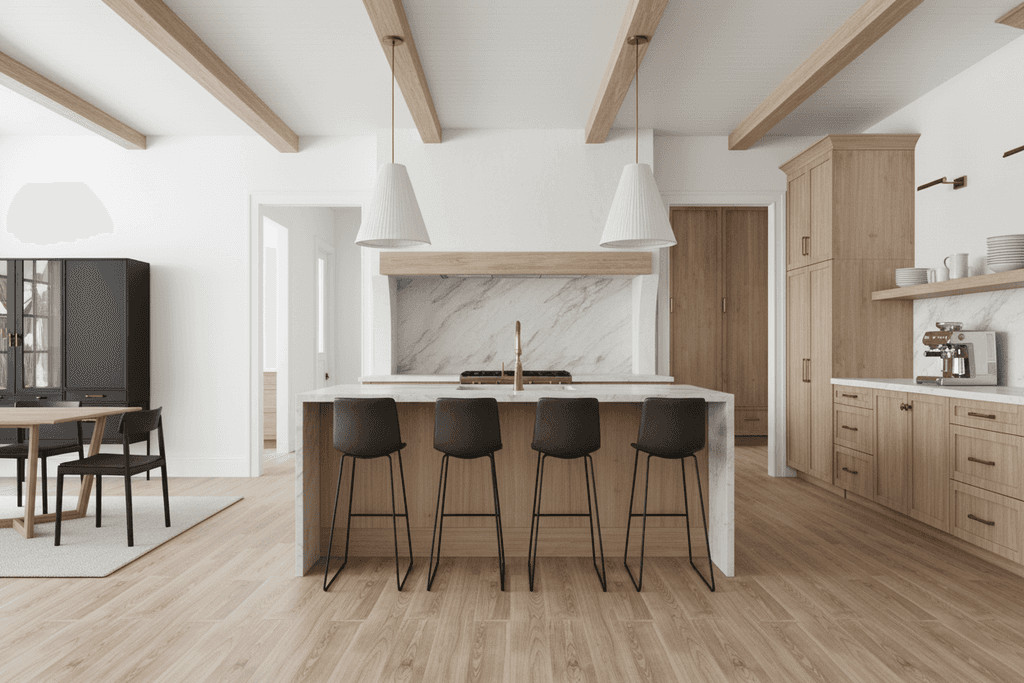
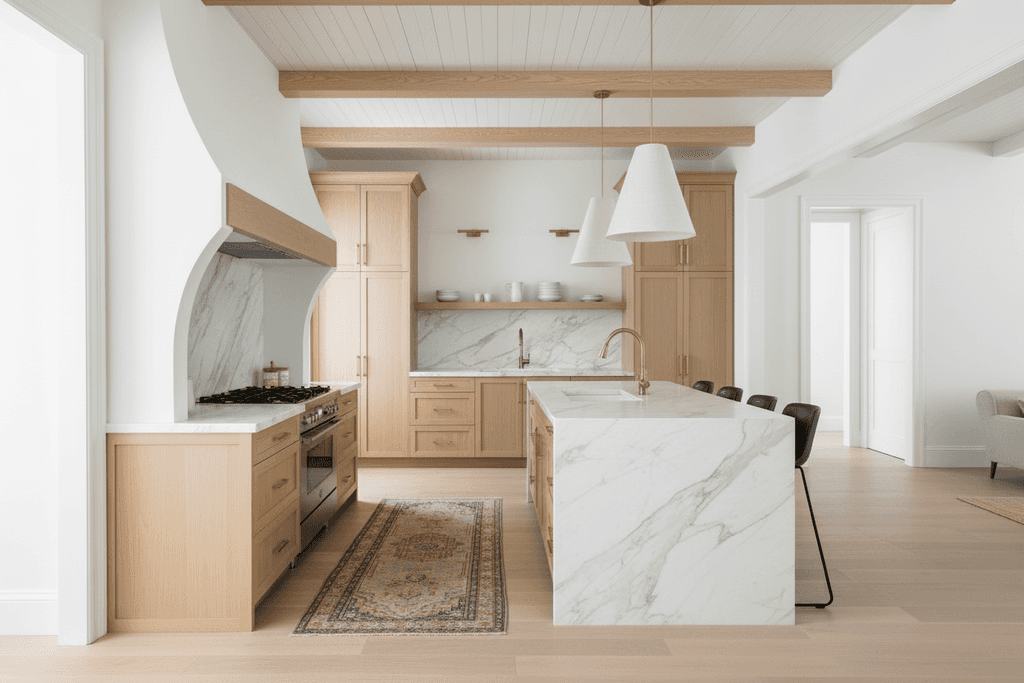
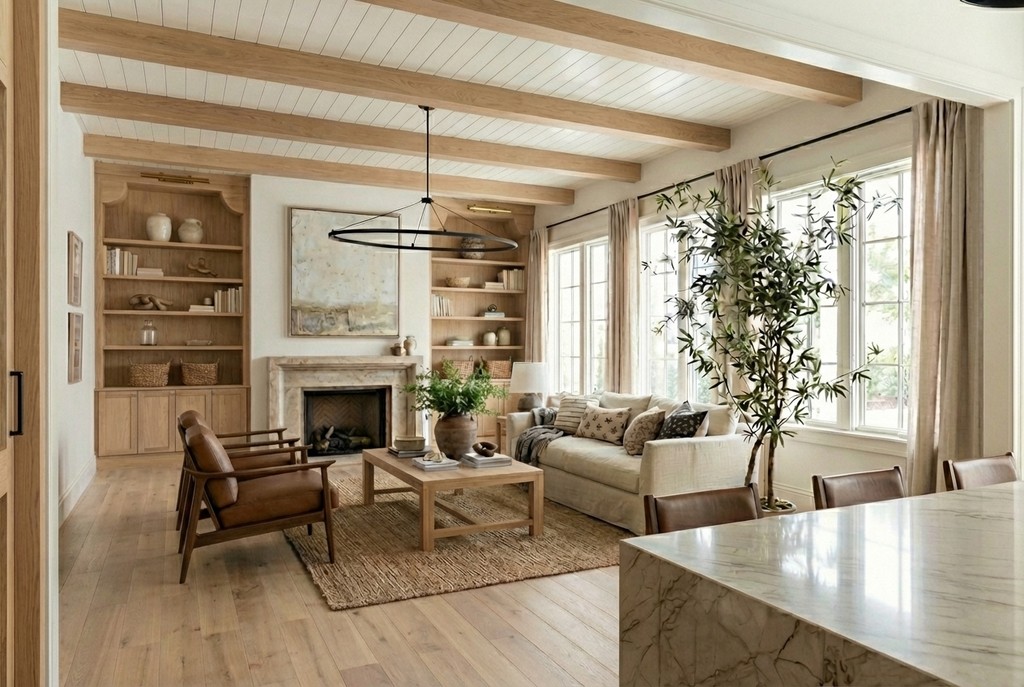
Turn your Revit models into photorealistic renders in seconds. Upload the model or a screenshot of your view, pick the scene and describe the materials. No lighting setup needed.

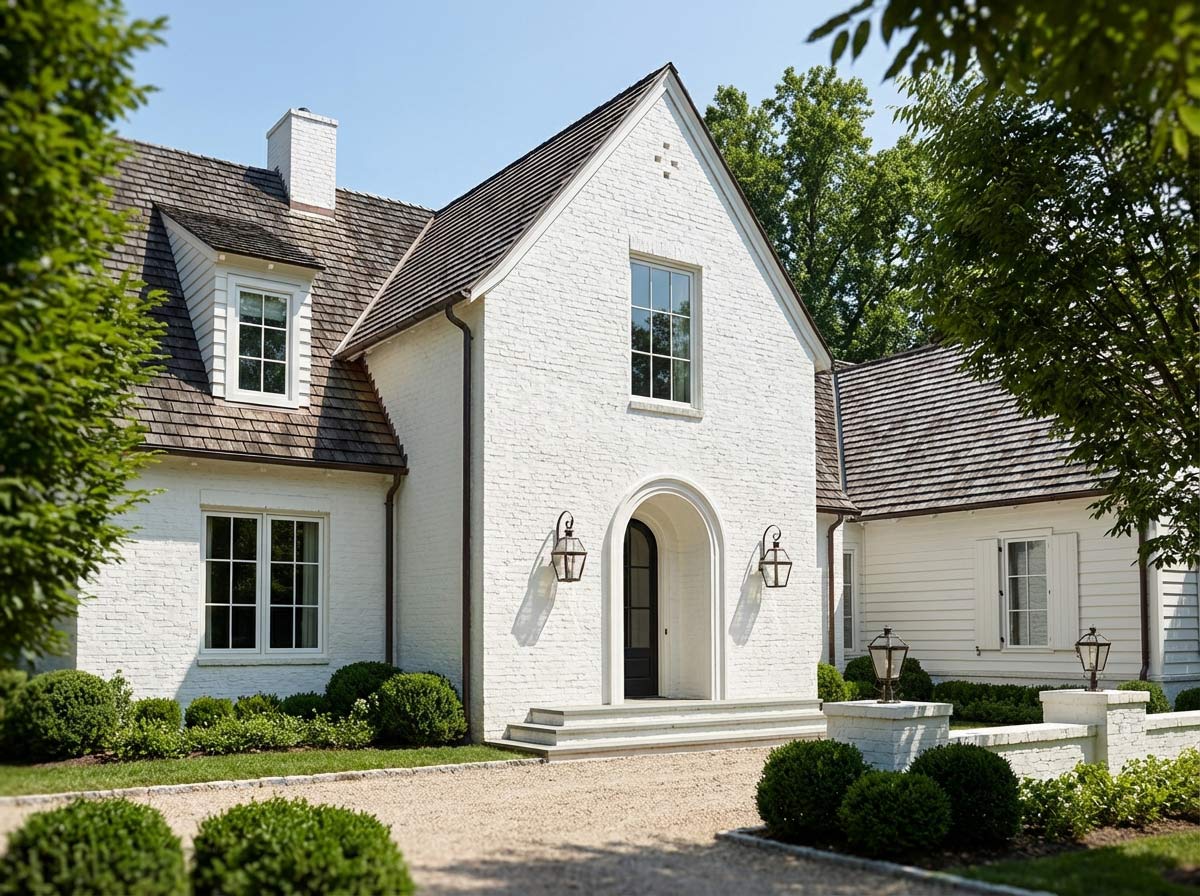
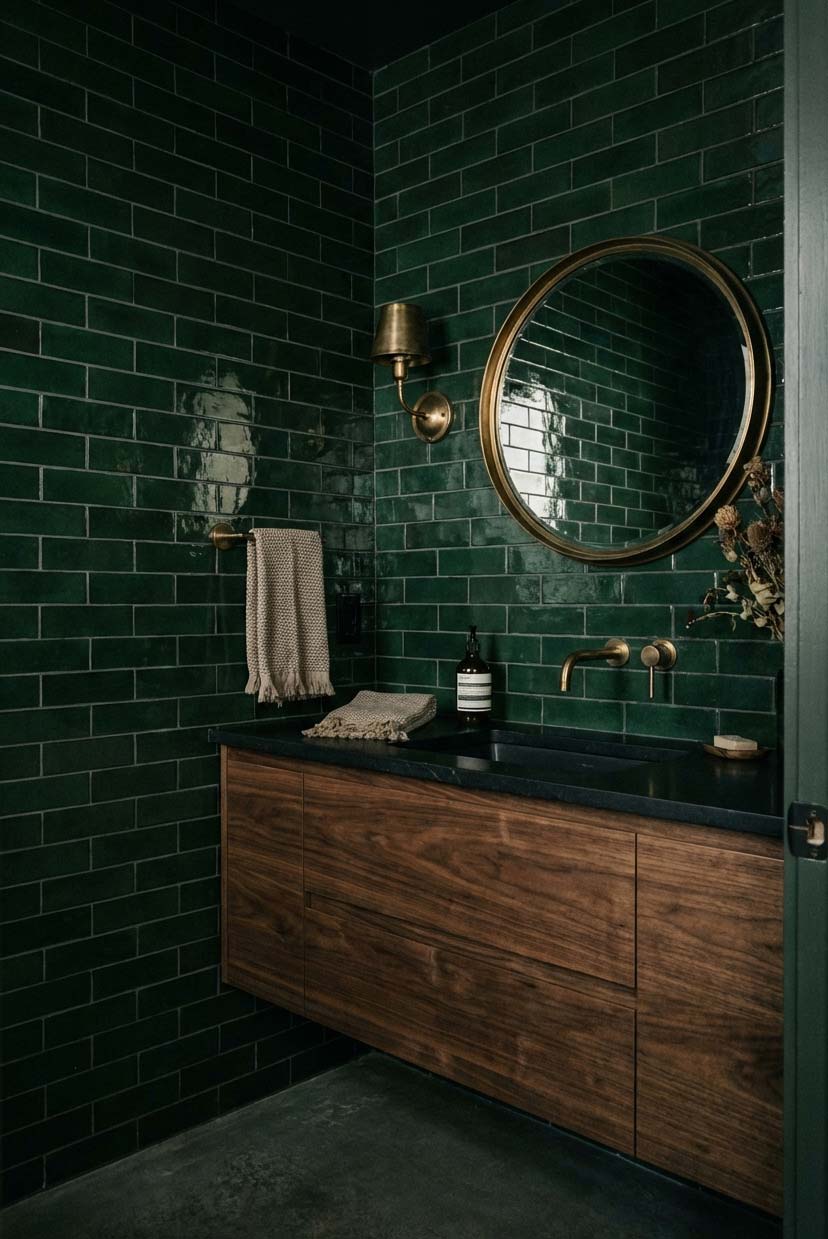
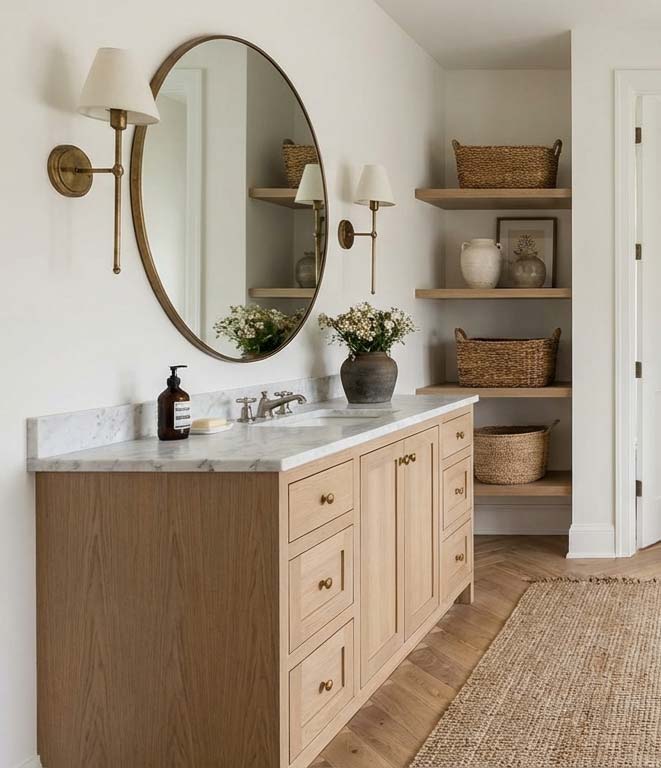
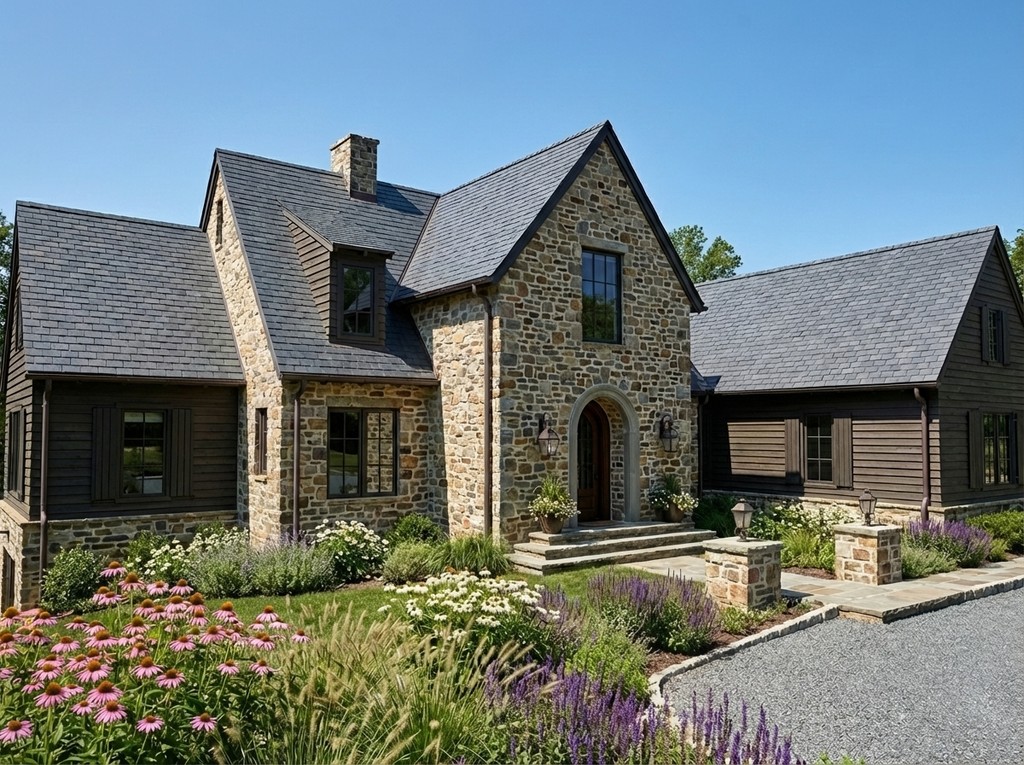
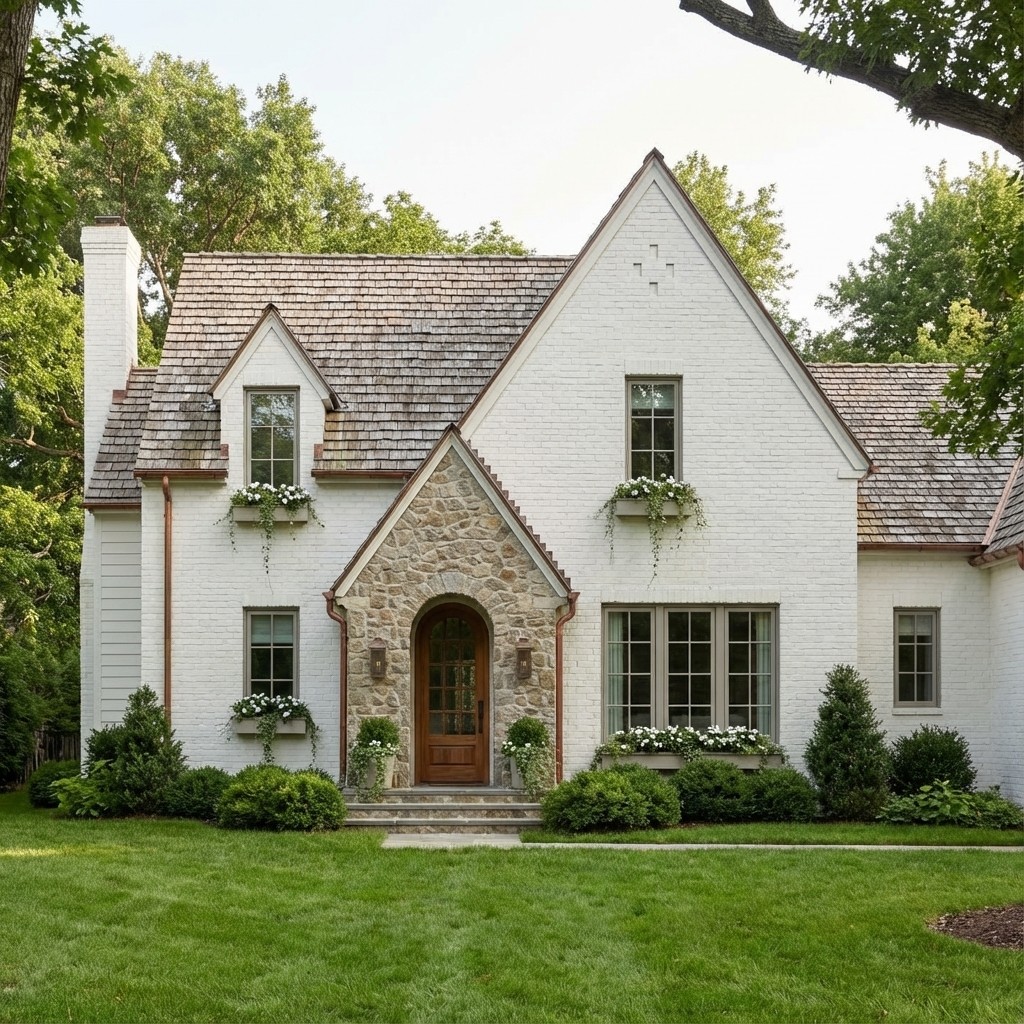
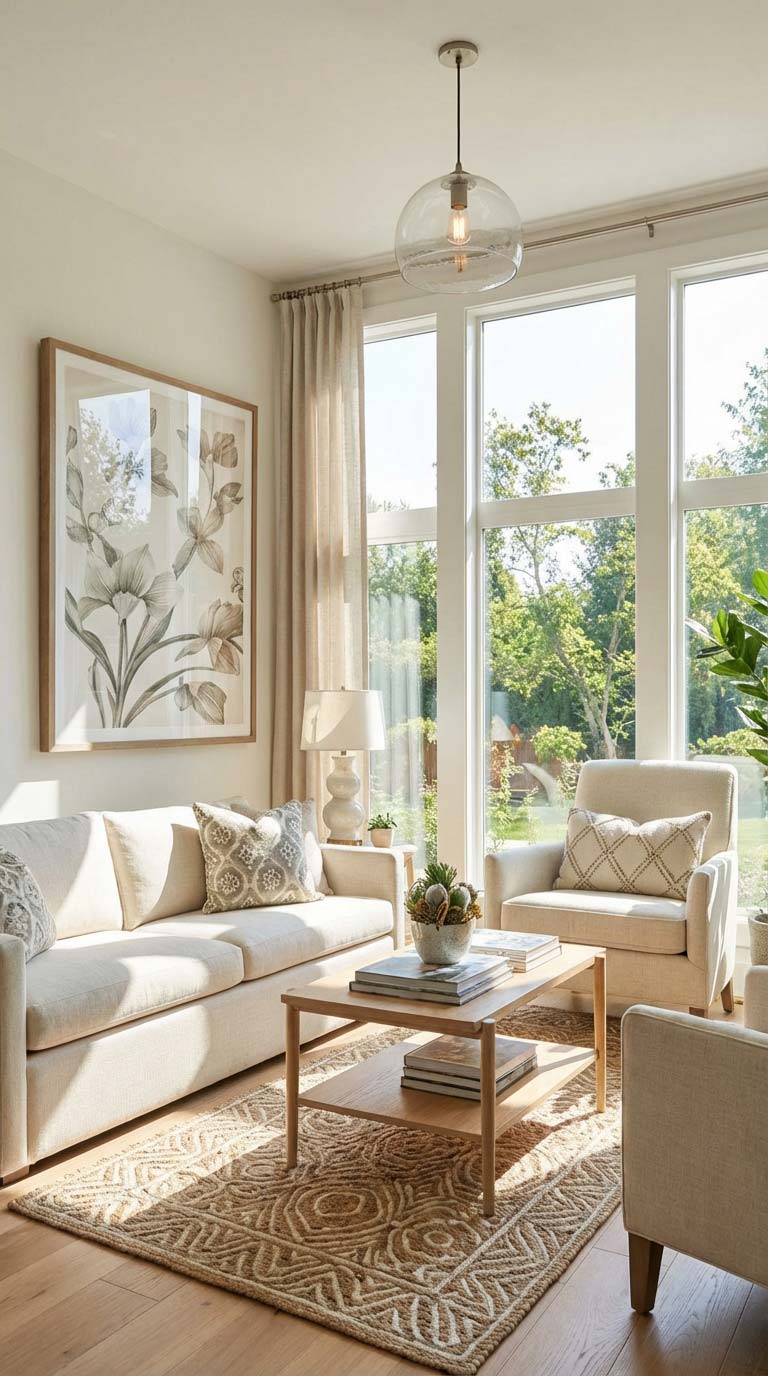
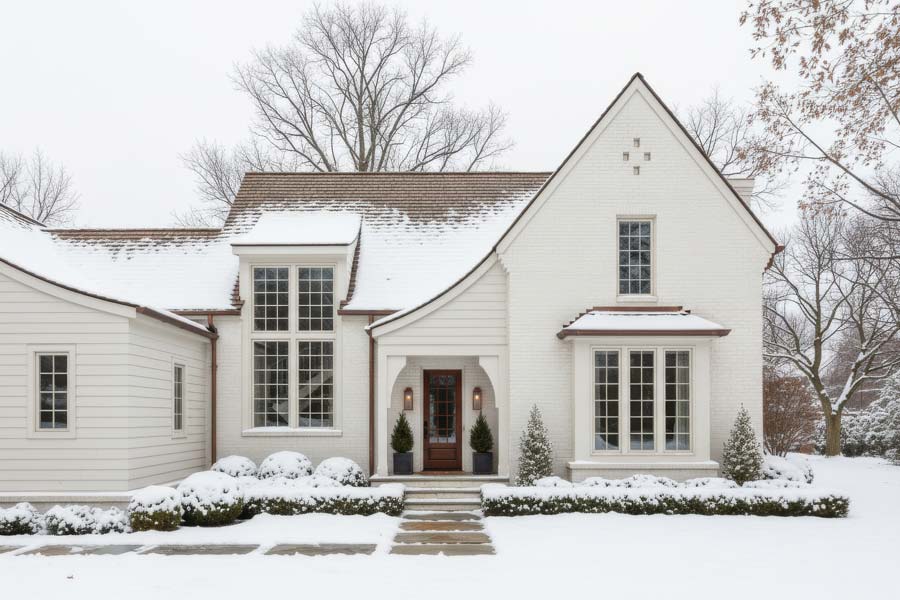
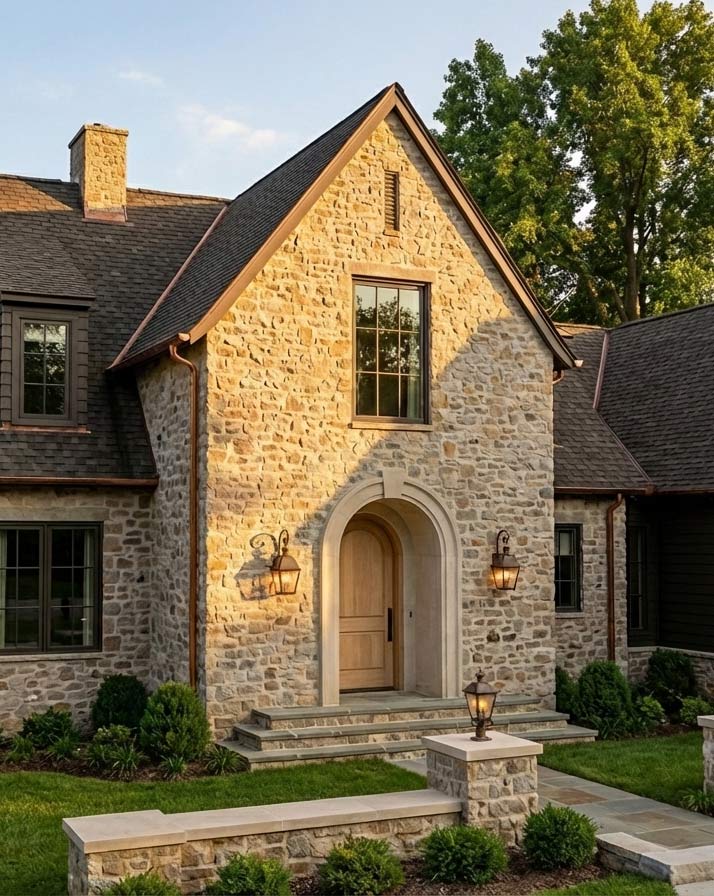
IMPORT & RENDER
3D Models from
Revit
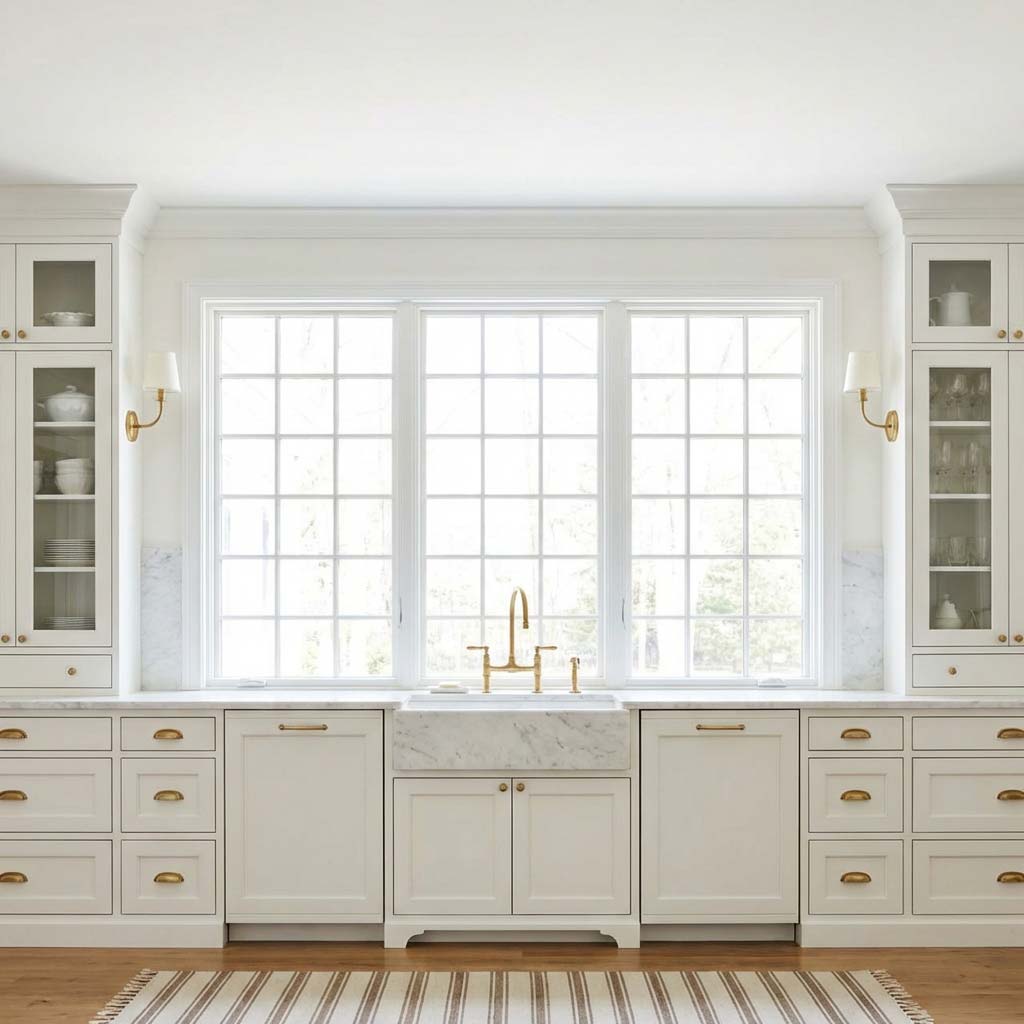
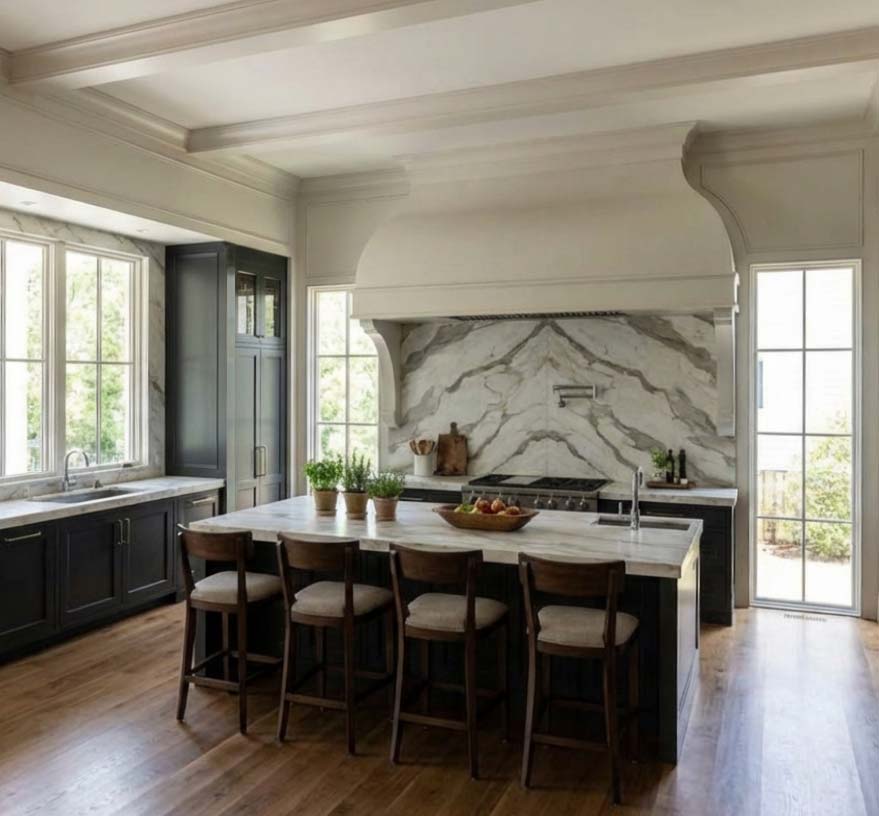
Bring in models from popular architectural software, find the perfect angle, and generate beautiful renders. No complicated lighting and scene setup required.
Supported file types: OBJ, FBX, GLTF, GLB




USING ARCHRENDER WITH
Revit
How to render a Revit model with AI
Revit models are detailed but slow to render well. ArchRender gives you a photorealistic image from a Revit view in seconds, for early design reviews and client updates.
Step 1: Get your Revit model or view into ArchRender
Open a 3D view in Revit and use File > Export > FBX, then upload the FBX file. Or export the view as an image (File > Export > Images and Animations > Image) and render from that. ArchRender accepts OBJ, FBX, GLTF and GLB files up to 400 MB.
Step 2: Pick the camera and the scene
After you upload a model, orbit to the view you want and set the field of view and aspect ratio in your browser. Then choose interior or exterior, the season, the time of day and the environment.
Step 3: Describe the materials and render
Describe the materials and style in plain language, or add a mood board or style reference image. Each render uses 1 credit (Ultra uses 2). Every result is saved to your project as a new version.
What you can render from Revit
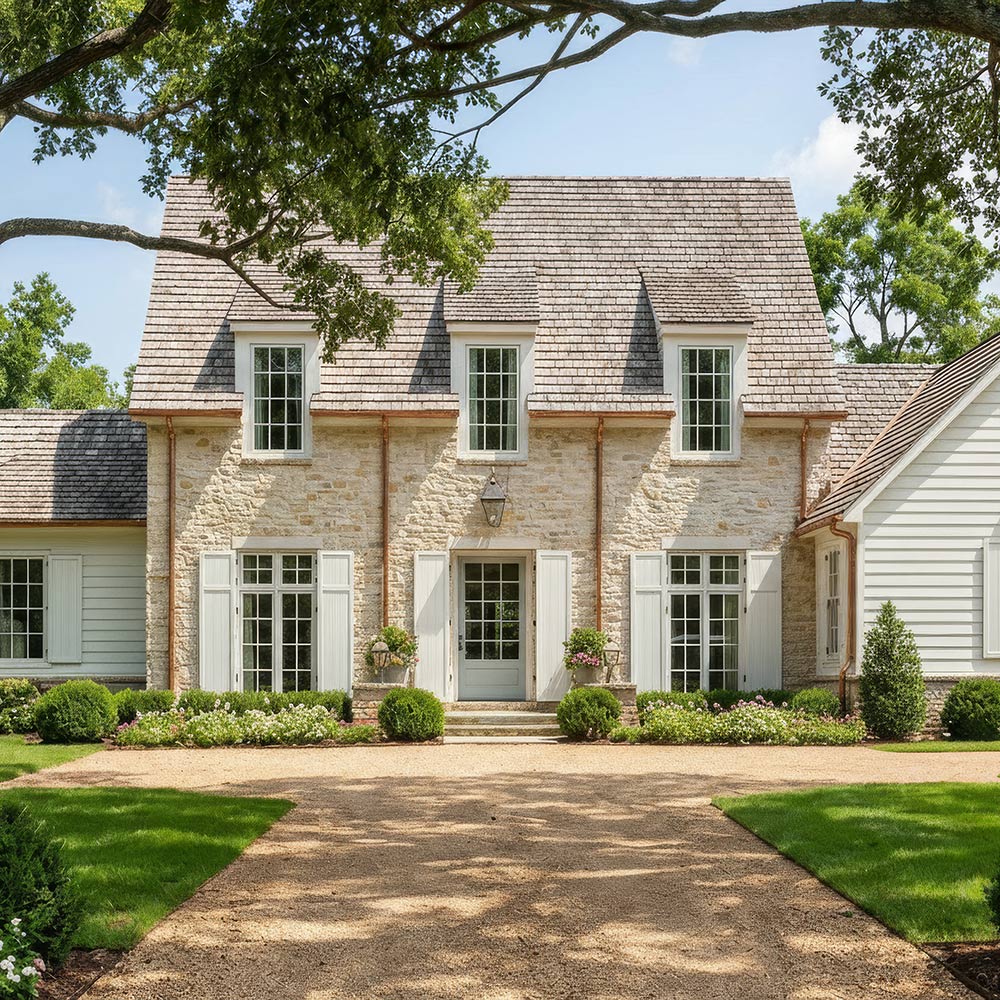
Exteriors: facades, houses and site views in any of 4 seasons and 6 times of day, from morning to night.
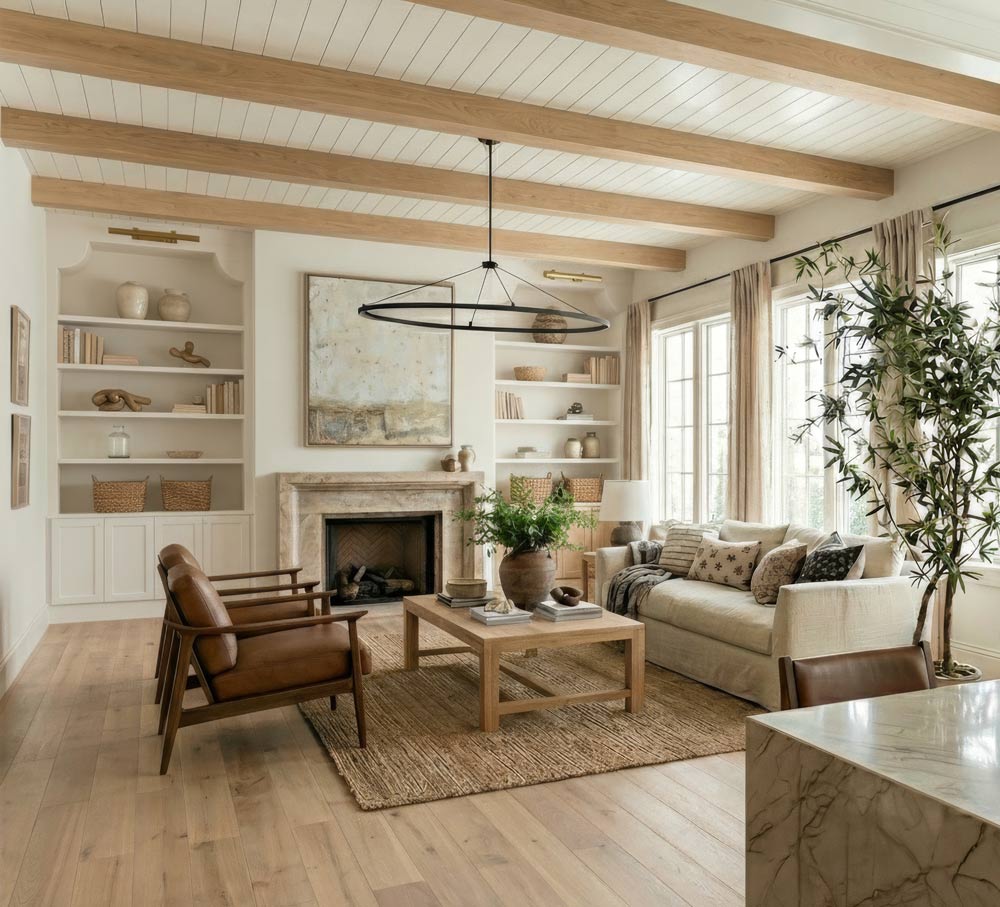
Interiors: living rooms, bedrooms and offices with realistic materials and light.
Kitchens and bathrooms: try cabinet, counter, tile and fixture options with a prompt, or use an area edit to change just one part.
Whole houses: show clients the same design in different settings, from coastal to urban.
Refine, upscale and animate
Edit Mode and area edits: change an existing render or photo, or mask one region and change only that area.
4K upscaling for presentations and print (1 credit).
Video Mode: turn a render into a 5- or 10-second clip with a camera-motion preset.
Your renders are yours
You own your renders and can use them commercially. Use them for client presentations, marketing, listings and other commercial work. See our Terms of Service for details.
Revit AI rendering FAQ
Can I upload a Revit file directly?
Open a 3D view in Revit and use File > Export > FBX, then upload the FBX file. Or export the view as an image (File > Export > Images and Animations > Image) and render from that.
How much does it cost?
Paid plans start at $29 a month for 150 credits, and a standard render uses 1 credit. See pricing for every plan.
Can I use the renders for client work?
You own your renders and can use them commercially. That includes client presentations, proposals, listings and marketing.
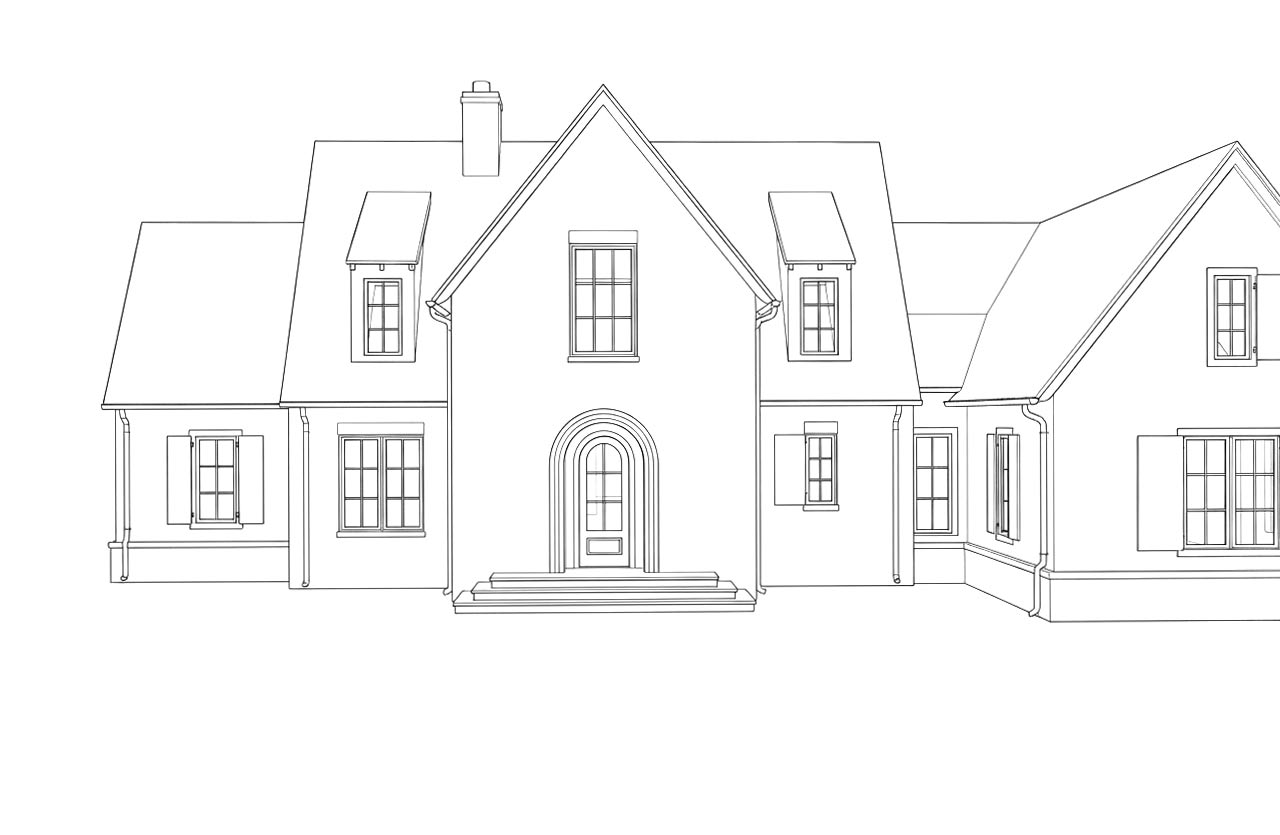
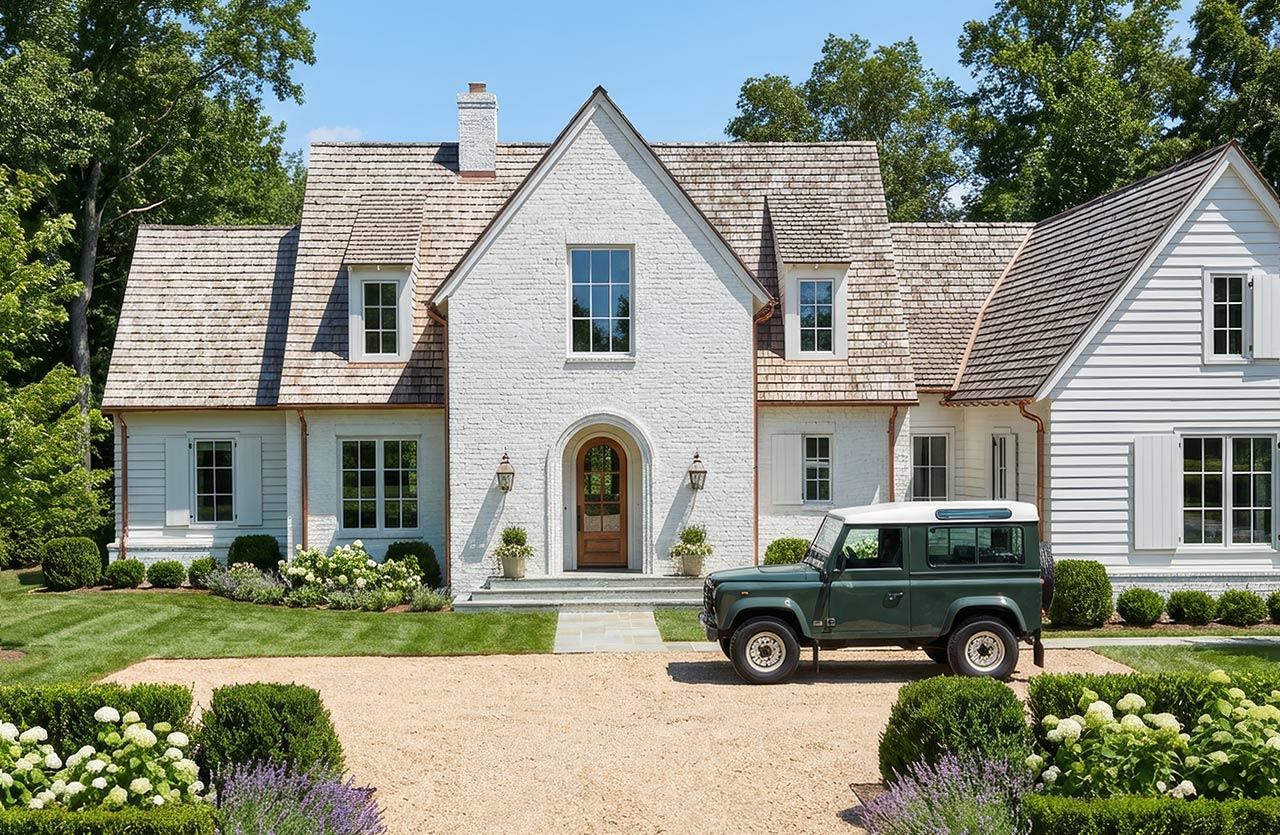
Season Control
Adjust the season to visualize designs in spring, summer, fall, or winter conditions, helping clients understand how a project looks year-round.
Time of Day
Control lighting conditions by setting the time of day to explore how light, shadows, and atmosphere affect the design.
Environment
Choose from different surrounding environments to place designs in context, from natural landscapes to more developed settings.
3D Model View Controls
Dial in your view before rendering. Change the angle, adjust the FOV, and set the ideal aspect ratio for export-ready scenes.
Exterior & Interior Mood Boards
Drop in a single inspiration board and the AI will interpret the colors, finishes, and style. Then translate them into your final image.
4K Upscaling
Turn any render into crisp, high-resolution 4K. Perfect for presentations, client proposals, and print-ready marketing.
Prompt-Driven Control
Use natural language to guide materials, style, mood, and lighting. Just describe the look you’re going for. ArchRender brings it to life.
Save Your Prompts
Save custom prompts and apply them to future renders instantly, keeping your unique style at your fingertips.
Edit Mode
Edit Mode lets you iterate, explore alternate styles, and perfect your vision, one click at a time.
SIMPLE WORKFLOW
How it Works
FAST RENDERS
A New Standard for Render Quality and Speed
ArchRender.ai produces visual results that traditionally require complex setups, long render times, and specialized rendering expertise.
Project-Based Workflows for Real Design Work
Organize files and keep work moving without losing context.
Everything in One Place
All renders and source images are saved together inside a project, so files stay organized as designs evolve.
Version-Friendly Iteration
Generate multiple options, explore variations, and compare results without overwriting previous work
Built for Ongoing Work
Return to projects at any time to refine visuals, make updates, or continue where you left off — even weeks later.
EXTERIORS & INTERIORS
From Vision to Reality in Seconds
Architects and designers can instantly preview interiors from drawings or models. Perfect for client presentations or planning your own space.
Frequently asked questions
Find quick answers to common questions about ArchRender.
What is render ai?
Who is ArchRender for?
Do I need rendering experience to use ArchRender?
How fast can I get results?
What 3D file types are supported?
How realistic are the results?
How does the credit system work?
Flexible pricing plans
Choose a plan that grows with you. Start for free and upgrade anytime for more features and support