How to Use ArchRender to AI Render Your SketchUp Project
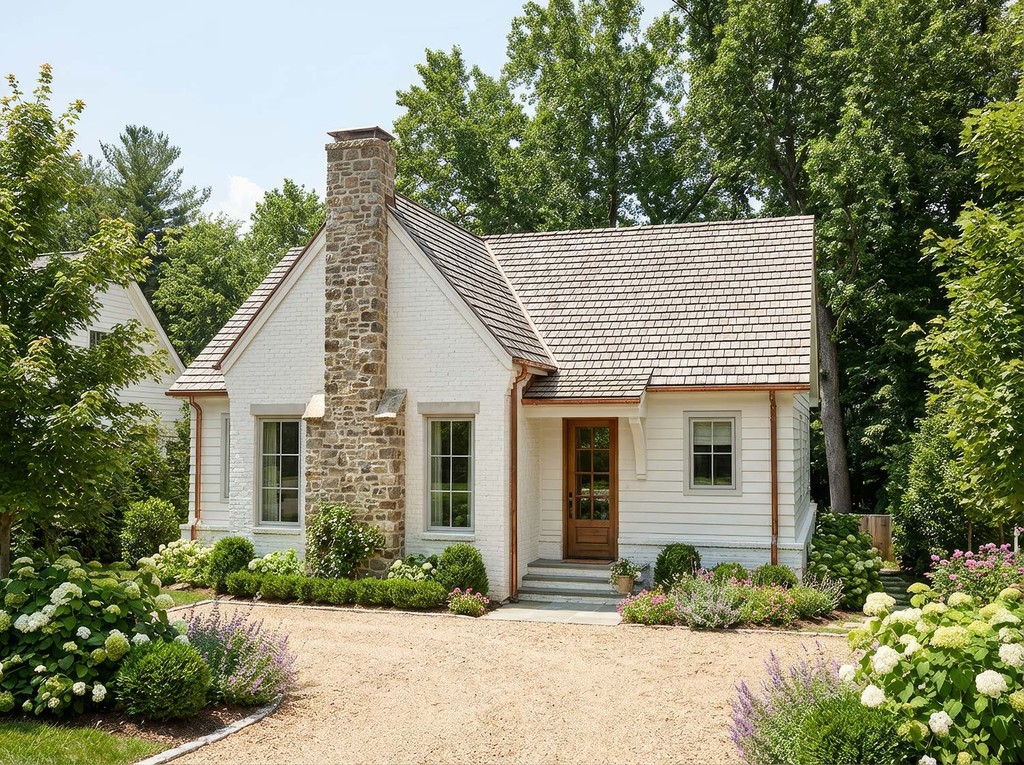
Creating a high-quality AI render from a SketchUp project no longer requires complex lighting setups, expensive hardware, or hours spent inside traditional rendering software. With ArchRender, you can transform a SketchUp model into a photorealistic AI render in seconds, whether you start from a screenshot or import the full 3D model.
This guide explains how to use ArchRender to AI render a SketchUp project efficiently, while maintaining control over camera views, style, and realism.
Why Use ArchRender for a SketchUp AI Render
SketchUp is a powerful modeling tool, but rendering has always been the bottleneck. Traditional workflows demand manual scene setup, lighting calibration, and repeated trial and error. ArchRender removes this friction by using AI to handle realism automatically, delivering high-quality AI renders in seconds instead of hours.
ArchRender supports both image-based AI render workflows and true 3D model imports. This allows you to start with a simple SketchUp screenshot for fast concepts and scale up to full geometry-aware AI rendering when precision or multiple views are required.
Preparing Your SketchUp Project
Before creating an AI render, it helps to prepare your SketchUp model. Cleaning up unused geometry, confirming scale. The model does not need to be highly detailed, but clarity improves realism and consistency in the final render.
Once your model is ready, decide whether you want to AI render from an image or from the actual 3D model.
Rendering a SketchUp Screenshot with ArchRender
For quick concept visuals, exporting a screenshot from SketchUp is the fastest way to generate an AI render. Set your desired camera view inside SketchUp, export or capture an image, and upload it directly into ArchRender. The AI processes the image and produces a realistic AI render in seconds by enhancing lighting, materials, and atmosphere.
This approach works well for early design stages or fast client visuals. Because the AI render is based on a single image, the camera angle remains fixed, making this method best suited for single-view concepts.
Rendering a SketchUp Model with ArchRender
For professional workflows, importing the full 3D model into ArchRender is the recommended approach. Export the model as either a obj or fbx file. Then you can upload the model directly into ArchRender and choose camera views inside the app.
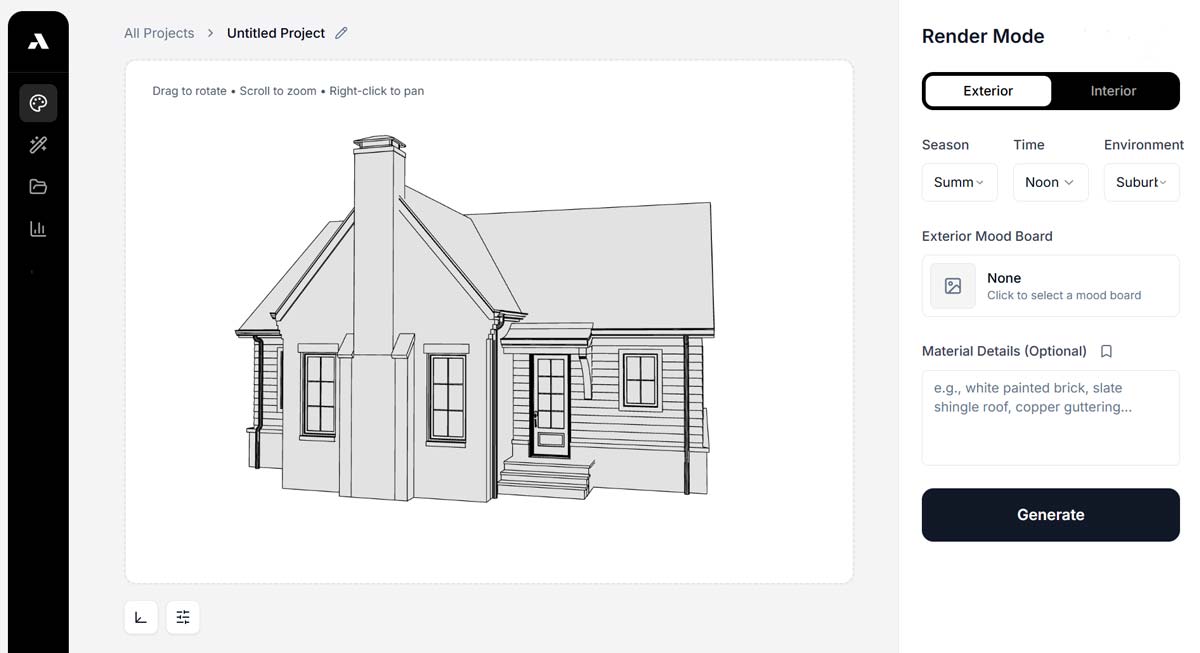
This model-based AI render workflow allows you to adjust angles, reframe compositions, and generate multiple views without re-exporting from SketchUp. Because the AI understands the underlying geometry, results are more accurate and consistent, while still rendering in seconds.
Adjusting Camera, Style, and Lighting
Once your SketchUp image or model is inside ArchRender, you can refine the AI render by adjusting camera composition, lighting mood, and overall style. Changes to time of day, environment, and atmosphere can dramatically alter the final result, and because each AI render is generated in seconds, experimentation is fast and fluid.
Instead of committing to a single setup, you can explore multiple directions and refine based on feedback almost instantly.
Generating and Refining the AI Render
After selecting your settings, ArchRender generates the AI render in seconds. Once the result appears, you can refine prompts, adjust the camera when using a model import, or regenerate with a different style or mood. This rapid feedback loop makes ArchRender especially effective for client presentations and design development.
Unlike traditional rendering, you are never blocked by long render times or complex technical adjustments.
Exporting and Using Your Render
When the AI render matches your vision, you can export it for presentations, marketing materials, design reviews, or social media. Because ArchRender is cloud-based, there is no need for powerful local hardware, and your renders remain accessible from anywhere.
Final Thoughts
Using ArchRender to AI render a SketchUp project replaces a slow, technical workflow with a fast and flexible process. Whether you begin with a simple screenshot or import a full 3D model, ArchRender delivers realistic AI renders in seconds without sacrificing control.
By combining image-based speed with true model-based rendering, ArchRender allows SketchUp users to move seamlessly from early concepts to polished, client-ready visuals.
Ready to AI Render Your SketchUp Project?
Upload a SketchUp image or import your 3D model into ArchRender and generate your first AI render in seconds.