How to Use ArchRender to AI Render Your Revit Project in Seconds
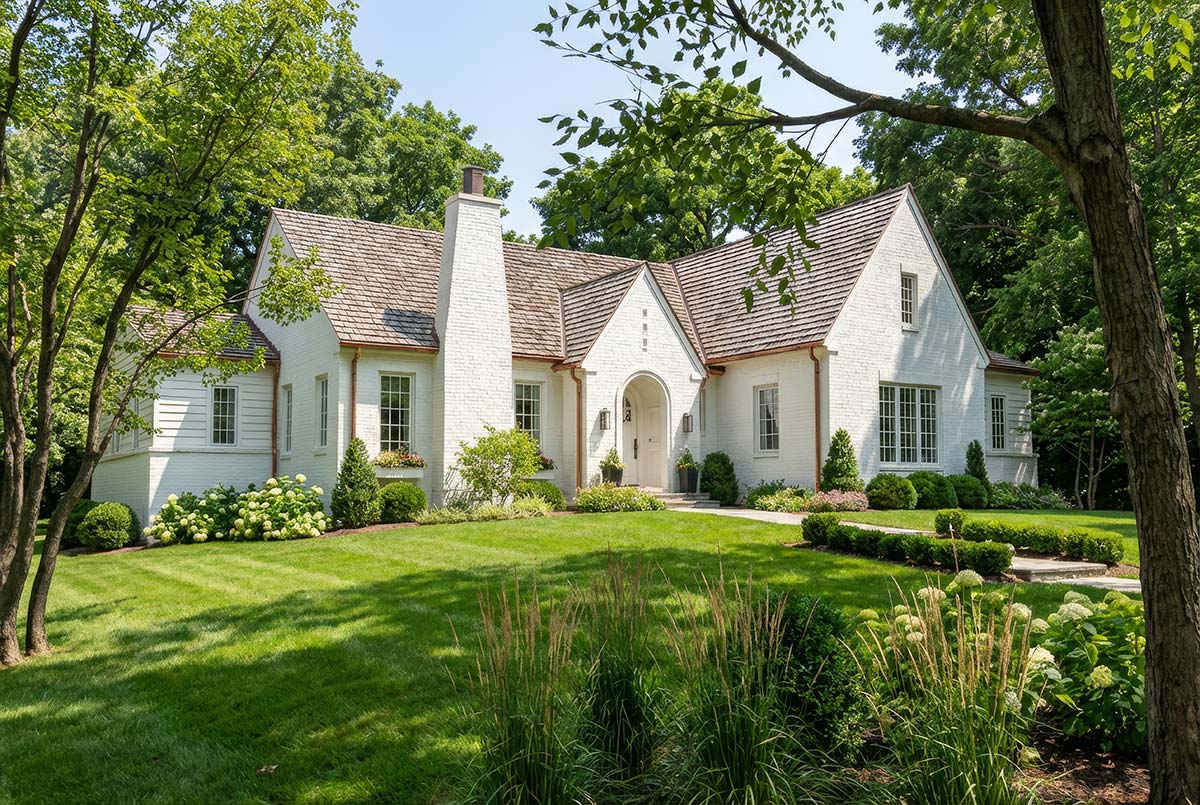
Revit is one of the best tools for architects and designers, but making high-quality visualizations from Revit models has usually required complicated rendering software, a lot of time to set up, and a lot of technical know-how. A lot of professionals spend hours changing the lighting, materials, and camera settings, but the results still look fake or too processed.
You can now AI render your Revit projects in seconds with ArchRender, without having to build detailed scenes or learn complicated workflows. ArchRender lets you turn your Revit models into realistic, professional-grade images almost instantly, whether you're working on early design ideas or getting ready for a client presentation.
This guide shows you how to use ArchRender to make AI renders from your Revit projects that are quick, accurate, and look great.
How AI Rendering Is Changing Revit Visualization
You often have to set up the scene, map the materials, change the lighting, and run test renders over and over again with traditional Revit rendering tools and external engines. This process makes it harder to quickly try out different design ideas and slows down the process of changing designs.
AI rendering gets rid of most of this friction. You don't have to build full rendering environments. Instead, you give ArchRender a Revit view or image, and the system automatically figures out the geometry, depth, materials, and lighting. The end result is a realistic picture that shows what you wanted to do with your design without all the technical hassle.
AI render workflows let architects see their ideas during the design process instead of having to wait until the end of a project. This is great for architects who value speed and flexibility.
How to Get Your Revit Model Ready for AI Rendering
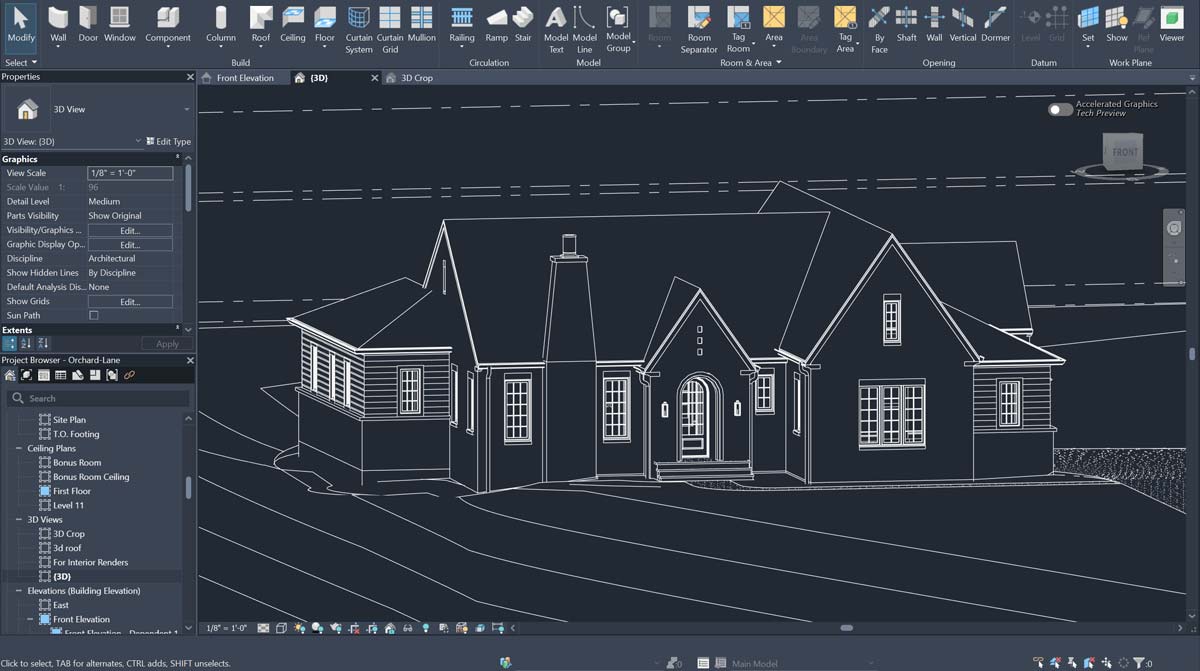
Setting up a clean and well-composed view inside Revit is important before making an AI render. To begin, pick a camera angle or perspective view that makes the architectural features you want to highlight stand out. Exterior views should show the building in the right context, while interior views should focus on how the space is laid out and how the materials change.
Use basic materials and finishes in Revit whenever you can. You don't have to make textures that are very detailed, but giving ArchRender realistic material types helps it understand how surfaces behave and how light interacts with them. There should be clear lines between walls, floors, windows, and other important architectural features.
To keep the view clean, hide any extra reference elements, construction lines, and annotation objects. A simpler model makes AI renders that look more professional and consistent.
Exporting a Revit View to ArchRender
When your view is ready, save it as a high-resolution picture from Revit. You can do this directly with Revit's export tools or by taking a high-quality screenshot. If you want to use the render for marketing or presentations, make sure the resolution is high enough to keep the details.
ArchRender also lets you import 3D model data along with images, which makes it easier to control the camera and make different versions of the render. Importing the model gives you more options when refining viewpoints if you use supported formats.
For a lot of people, the easiest and quickest way to get started is with a clean screenshot.
How to Upload Your Revit Image to ArchRender
Once you're logged into ArchRender, you can upload your exported Revit image or model file to a new project. The platform automatically looks at the input's geometry, perspective, and lighting.
At this point, you can give optional advice about the style, mood, or material direction you want. You could, for instance, ask for modern minimalist interiors, warm residential lighting, modern exteriors, or environments that let in natural light. These steps will improve the AI render while keeping your Revit model's architectural accuracy.
The interface of ArchRender is simple and fast because it was made for designers, not for people who are good at technology.
Making Your AI Render in Just a Few Seconds
ArchRender starts working right away after you upload your file and set your prompt. ArchRender makes high-quality AI renders in seconds, unlike traditional rendering engines that can take minutes or hours to render each image.
The system improves the lighting, textures, reflections, and atmosphere without changing the structure or proportions of your Revit model. Windows get realistic reflections, materials look more real, and shadows react in a way that makes sense with the scene.
This quick turnaround lets you look at a lot of different design options without stopping your work.
Improving and changing your render
One of the best things about using ArchRender with Revit is that you can quickly make changes. You can easily make another AI render with a different prompt or input image if you want to try out different lighting conditions, finishes, or styles.
You can try out scenes in the morning and evening, different materials, landscapes for different seasons, or different moods in the house. You can work on designs with clients and other important people in real time because each render only takes a few seconds.
This method makes rendering an active design tool instead of just a step in the final production.
Using Model Imports for More Control
ArchRender lets you import 3D models that work with it for projects that need precise camera control or the same view across multiple renders. You can change the positions of the cameras directly in the platform before making an AI render when you import a model that came from Revit.
This is very helpful for big projects, marketing sets, or design studies that need to look the same. You can make more than one scene from the same model without having to export images from Revit again.
Model-based workflows also make it easier to change the visuals as the design changes.
Using AI Renders in Client Presentations
Good visuals make it easier to talk to each other and make decisions. With ArchRender, Revit users can make images that are ready for presentations without having to hire someone else or wait a long time for them to be made.
You can use AI renders for client meetings, investor decks, marketing materials, permit packages, and online portfolios. They help people who aren't technical understand spatial relationships and design intent better because they keep the accuracy of the architecture while adding realism.
Faster visualization also lets you show more than one option, which makes clients feel more confident and involved.
Benefits of Using ArchRender for Revit Projects
ArchRender was made just for architects and designers who use professional modeling tools. It supports both image-based and model-based workflows, and it keeps the structure of imported designs intact, unlike other image generators.
ArchRender lets Revit users focus on design instead of setting up software by getting rid of complicated lighting setups and manual rendering pipelines. The end result is a process that fits right into the way architects work today.
This method cuts down on production time and improves visual quality, whether you work alone or as part of a big company.
In conclusion
Architects are using AI rendering to see their Revit projects in new ways. ArchRender lets professionals make realistic images in seconds instead of using slow, technical rendering engines.
You can make high-quality AI renders that help you design faster and talk to clients more clearly by exporting a clean Revit view, uploading it to ArchRender, and then improving the output with simple prompts.
ArchRender is a practical and powerful way for architects to render Revit projects with AI without giving up time or flexibility.