Best Revit Rendering Software: The Complete Guide [2026]
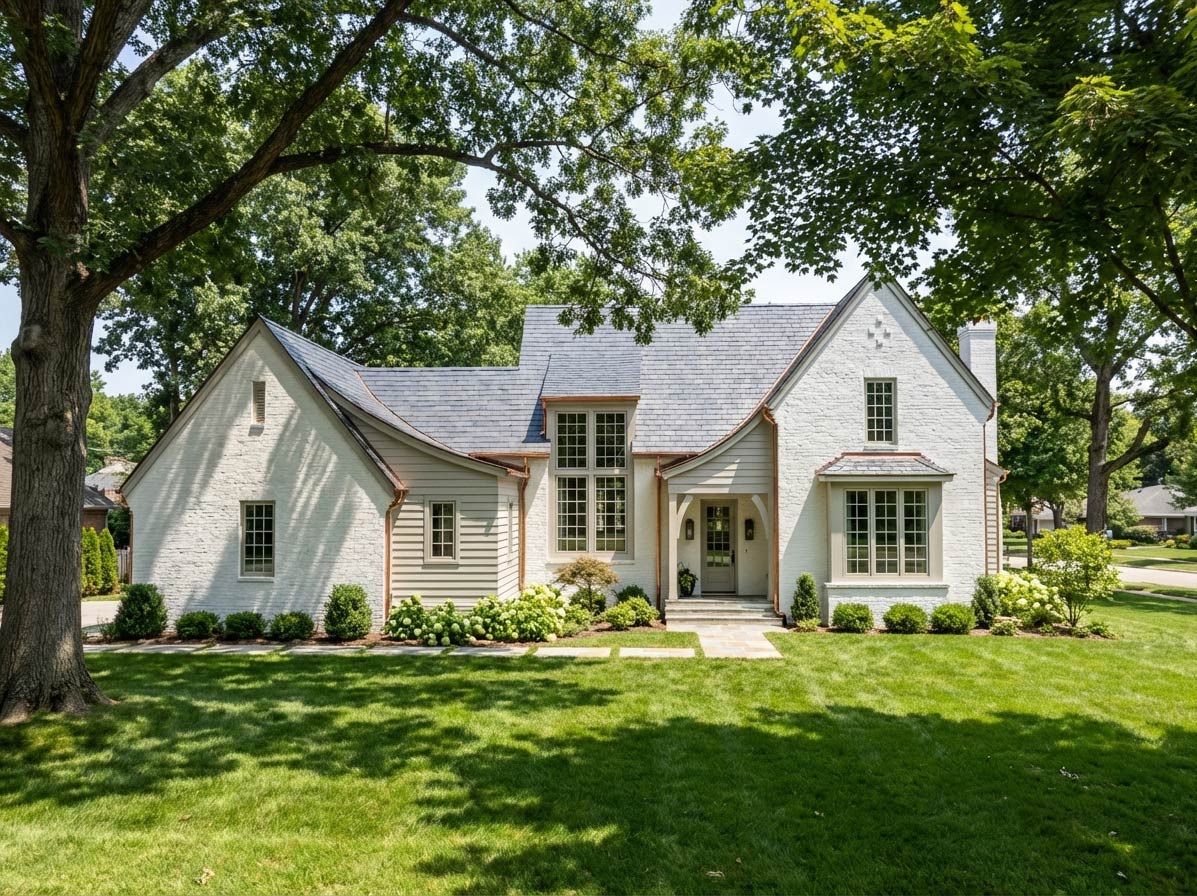
Get photorealistic renders from your Revit models — without the steep learning curve or expensive hardware.
Revit is the industry standard for BIM. But let's be honest: its built-in rendering is underwhelming.
If you've ever tried to present a native Revit render to a client, you know the problem. The lighting looks flat. The materials feel plastic. And the overall result screams "computer generated" instead of "this is what your building will look like."
The good news? There are excellent third-party rendering options that integrate with Revit — from traditional powerhouses like V-Ray to new AI tools that generate photorealistic images in seconds.
In this guide, I'll walk you through every major Revit rendering option in 2026, help you understand the tradeoffs, and show you how to get professional results without becoming a rendering specialist.
Why Revit's Native Rendering Falls Short
Revit is a BIM tool first and a visualization tool second. Its built-in renderer uses Autodesk's mental ray engine (now replaced by Arnold in newer versions), but the results rarely match what you can achieve with dedicated rendering software.
Common complaints about native Revit rendering:
Flat, unrealistic lighting — especially for interior scenes
Limited material library — materials often look "off"
Slow render times — complex scenes can take hours
Awkward sky and environment — requires post-processing in Photoshop
No real-time preview — you wait, then see if it worked
Even Autodesk acknowledges this limitation by offering cloud rendering credits and recommending third-party solutions for professional visualization.
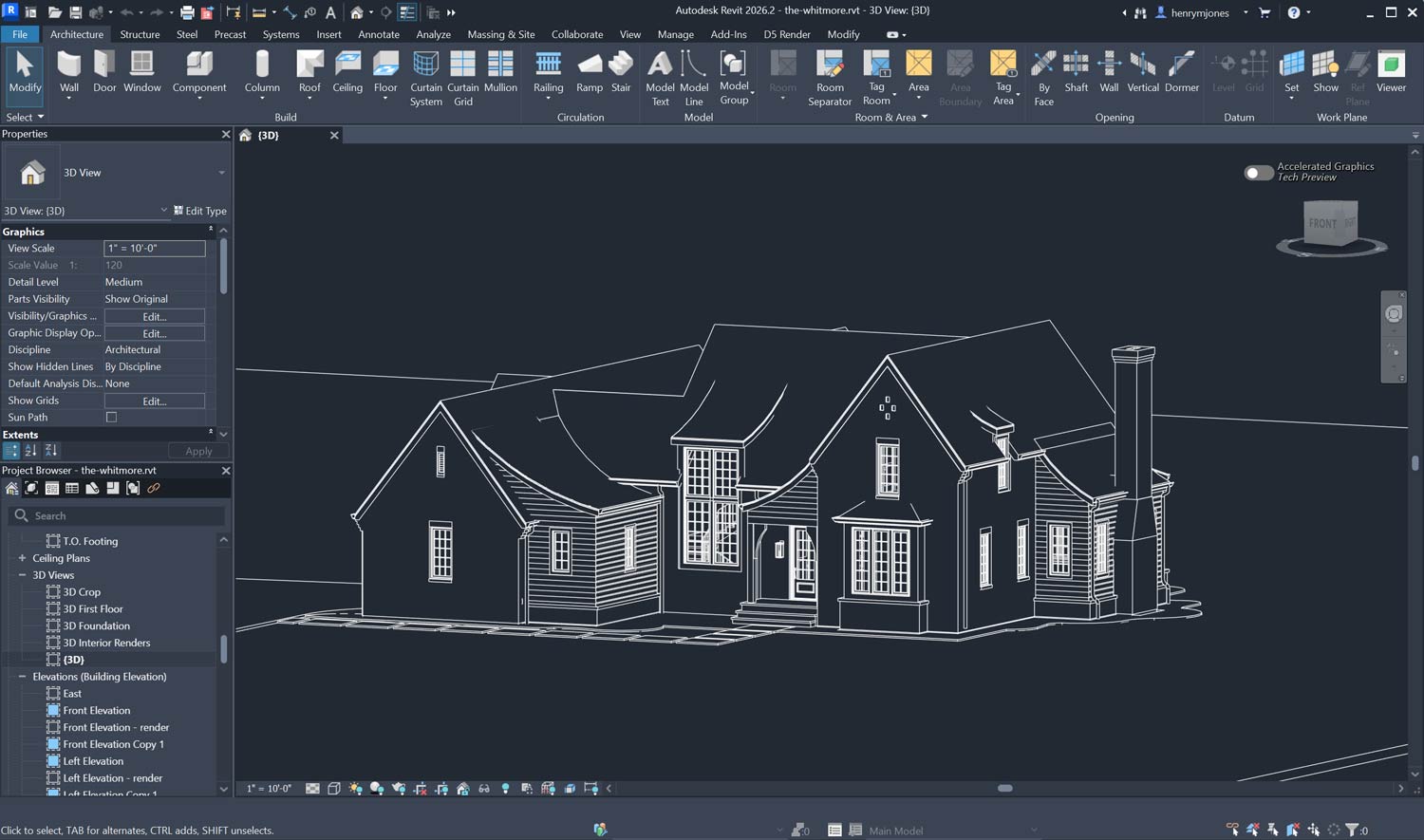
The 4 Types of Revit Rendering Software
Before diving into specific tools, let's understand the four main categories:
1. Real-Time Rendering Plugins
These integrate directly into Revit and show you a photorealistic preview as you work. Changes in your model appear instantly in the render view.
Examples: Enscape, Lumion View, Twinmotion
Best for: Design reviews, client presentations, VR walkthroughs
2. Traditional Rendering Engines
These offer maximum control over lighting, materials, and camera settings. They produce the highest-quality results but require more setup time and rendering expertise.
Examples: V-Ray, Corona Renderer, Arnold
Best for: Competition boards, marketing materials, final presentations
3. External Real-Time Renderers
Standalone applications that import your Revit model for rendering. They offer more features than plugins but require exporting your model.
Examples: Lumion Pro, D5 Render, Twinmotion (standalone)
Best for: Animations, complex environments, large asset libraries
4. AI Rendering Tools
The newest category. These use artificial intelligence to generate photorealistic images from your model in seconds, without manual lighting or material setup.
Examples: ArchRender, Veras, MyArchitectAI
Best for: Fast iteration, concept exploration, when you need results in minutes instead of hours
The Best Revit Rendering Software in 2026
Let's look at each major option in detail.
Enscape
Type: Real-time plugin | Price: $504/year | Website: enscape3d.com
Enscape is the most popular Revit rendering plugin for a reason: it's fast, easy, and produces consistently good results with minimal effort.
Once installed, Enscape adds a toolbar to Revit. Click the start button, and you're immediately in a real-time rendered view of your model. Walk around, adjust the time of day, and watch lighting update instantly. When you like what you see, export a high-resolution image or 360° panorama.
Strengths:
One-click setup — works immediately with your existing Revit materials
Real-time ray tracing for accurate reflections and lighting
Excellent VR support for client walkthroughs
Beautiful automatic sky and environment
Lightweight on system resources
Limitations:
Less control than traditional renderers like V-Ray
Asset library smaller than Lumion's
Video animation features are basic
Best for: Architects who want professional renders without a steep learning curve. If you value speed and simplicity over pixel-perfect control, Enscape is hard to beat.
Lumion
Type: External real-time renderer | Price: $1,499/year (Pro) | Website: lumion.com
Lumion is known for its massive library of 3D assets — trees, people, cars, furniture — and its ability to create cinematic animations quickly.
It works by importing your Revit model via a sync plugin. Unlike Enscape, you work in a separate application, but this gives Lumion room for more powerful features. The trade-off is a less seamless workflow and a higher price tag.
Lumion now offers two products:
Lumion View — A plugin that works directly inside Revit for quick previews
Lumion Pro — The full standalone application with complete rendering toolkit
Strengths:
Enormous asset library (10,000+ objects, people, trees)
Excellent for landscape and context
Powerful animation and video tools
LiveSync keeps Revit and Lumion connected in real-time
Limitations:
Expensive ($1,499/year for Pro)
Requires exporting to a separate application
Steeper learning curve than Enscape
Hardware-intensive
Best for: Firms that create a lot of marketing materials, animations, and need extensive environmental context. If you're doing competition entries or project videos, Lumion shines.
V-Ray for Revit
Type: Traditional rendering engine | Price: $350/year | Website: chaos.com/vray
V-Ray is the industry standard for photorealistic rendering. Used by 92 of the top 100 architecture firms, it produces the most lifelike results — if you're willing to invest the time to learn it.
Unlike real-time renderers, V-Ray calculates every light bounce physically. This means superior accuracy for complex lighting situations, glass, water, and translucent materials. But it also means longer render times and more manual setup.
Strengths:
Maximum photorealism and control
Industry-standard quality
Excellent for complex materials (glass, metal, fabric)
Large community and learning resources
Works across multiple 3D platforms
Limitations:
Steep learning curve (weeks to months to master)
Slow render times for complex scenes
Requires powerful hardware
Not real-time
Best for: Visualization specialists, competition entries, and projects where render quality is paramount and you have time to invest in setup.
Twinmotion
Type: Real-time renderer | Price: Free with Revit subscription | Website: twinmotion.com
Twinmotion is built on Unreal Engine and offers a compelling middle ground: more powerful than Enscape, easier than Lumion, and now free with your Revit license.
Autodesk's partnership with Epic Games means Twinmotion is included at no extra cost for Revit users — a significant value considering its capabilities.
Strengths:
Free with Revit subscription
Unreal Engine quality and performance
Direct import from Revit
Good asset library
Path tracing for high-quality stills
Limitations:
Separate application (not a plugin)
Can feel game-engine-ish
Smaller asset library than Lumion
Less established community
Best for: Firms that want better rendering than native Revit without additional software costs. An excellent entry point for teams new to visualization.
D5 Render
Type: Real-time renderer | Price: Free (Community) / $300/year (Pro) | Website: d5render.com
D5 Render is a rising star in architectural visualization. It uses real-time ray tracing to produce impressive results, and its free tier is genuinely usable — not just a limited demo.
The D5 Sync plugin for Revit enables live synchronization between your model and D5 Render. Make a change in Revit, and it appears in D5 instantly.
Strengths:
Excellent free tier
Real-time ray tracing
14,000+ asset library
Fast render times
Good AI-powered features (style transfer, inpainting)
Limitations:
Smaller community than Enscape/Lumion
Less integration with Revit than Enscape
Newer product, still evolving
Best for: Budget-conscious firms and solo practitioners who want professional results without the Enscape/Lumion price tag.
AI Rendering Tools
Type: Cloud-based AI | Price: Varies ($150-600/year) | Examples: ArchRender, Veras, MyArchitectAI
AI rendering is the newest category, and it's changing how architects think about visualization.
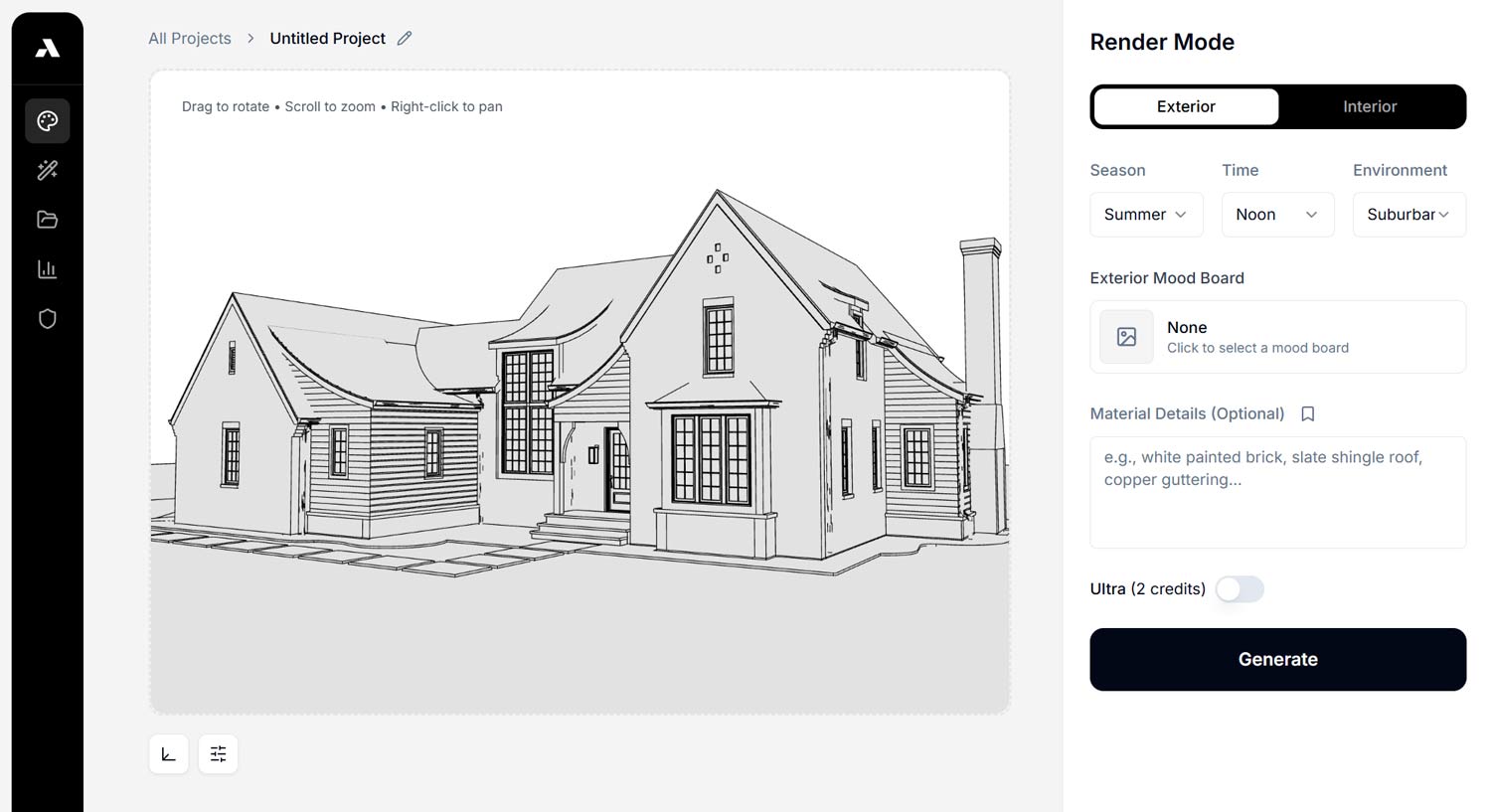
Instead of manually setting up lights, materials, and cameras, you upload your Revit model (or a screenshot of it), describe the look you want, and AI generates a photorealistic image in seconds.
How AI rendering differs from traditional tools:
Aspect | Traditional Rendering | AI Rendering |
|---|---|---|
Setup time | Hours | Minutes |
Render time | Minutes to hours | Seconds |
Learning curve | Weeks to months | Minutes |
Hardware required | High-end GPU | None (cloud-based) |
Control | Maximum | Moderate |
Best for | Final presentations | Concept exploration |
The key limitation: Most AI tools only accept 2D screenshots of your model, not actual 3D files. This means you're locked into whatever camera angle you captured.
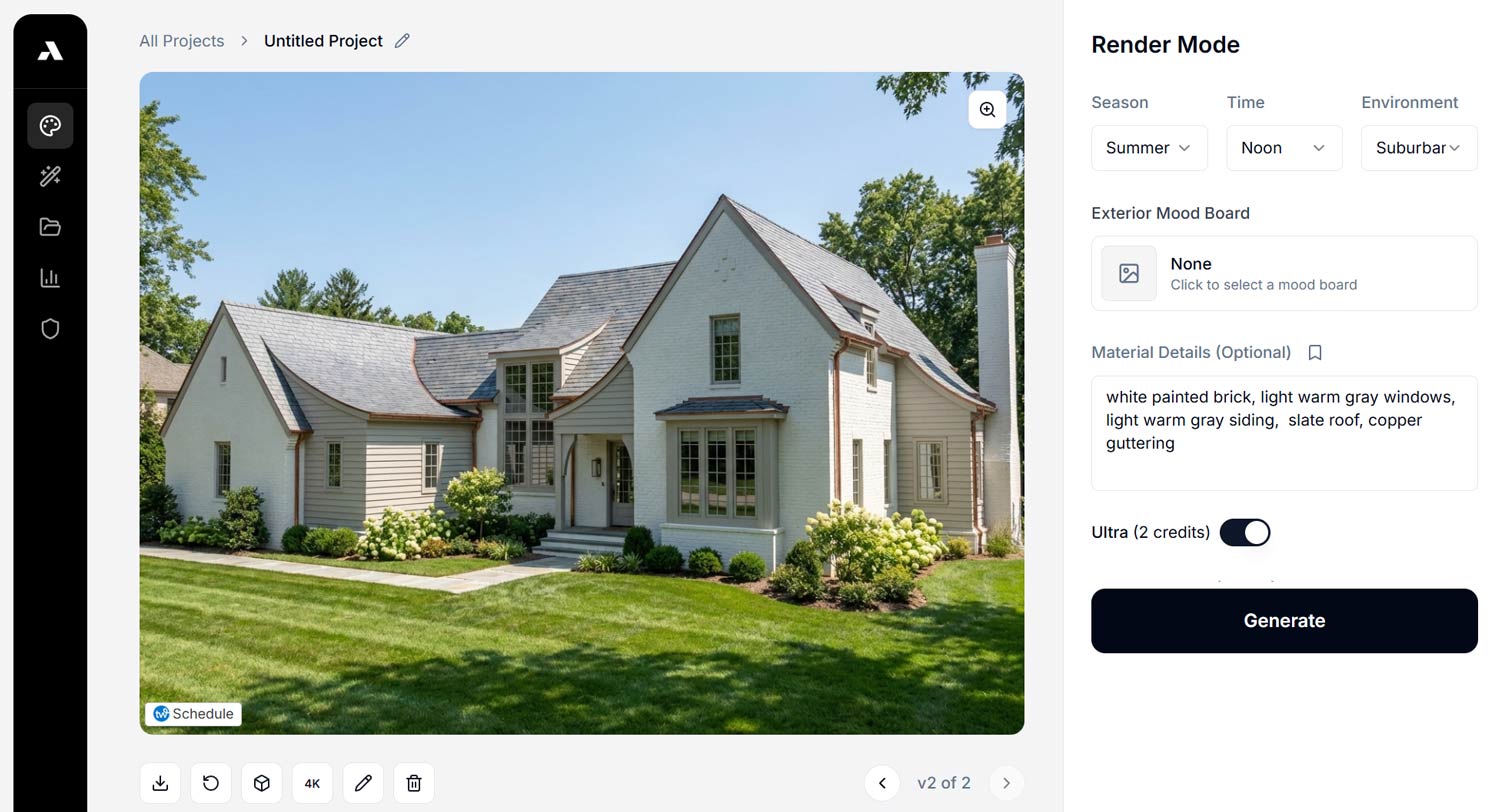
The exception: Some AI tools — including ArchRender — can import actual 3D model files (OBJ, FBX, GLB). This gives you full camera control within the rendering tool, so you can explore different perspectives without re-exporting from Revit.
Veras (Native Revit AI Plugin)
Type: AI plugin | Price: $300/year | Website: chaos.com
Veras deserves special mention as the only AI rendering tool that works as a native plugin inside Revit. No screenshots, no exports — it reads your model's geometry, materials, and camera directly.
This means AI-generated imagery stays faithful to your actual design, making Veras ideal for concept exploration while maintaining BIM accuracy.
Strengths:
Native Revit integration
Maintains model context
Good for rapid concept exploration
No export workflow required
Limitations:
Less photorealistic than traditional renderers
Still maturing as a product
Subscription required
Best for: Early-stage design exploration when you want to quickly visualize concepts without leaving Revit.
Quick Comparison: Revit Rendering Software
Software | Type | Price/Year | Speed | Quality | Learning Curve |
|---|---|---|---|---|---|
Enscape | Plugin | $504 | Real-time | Very Good | Easy |
Lumion Pro | External | $1,499 | Real-time | Excellent | Moderate |
V-Ray | Plugin | $350 | Slow | Best | Hard |
Twinmotion | External | Free* | Real-time | Very Good | Easy |
D5 Render | External | Free/$300 | Real-time | Very Good | Easy |
AI Tools | Cloud | $150-600 | Seconds | Good-Very Good | Very Easy |
*Free with Revit subscription
How to Export from Revit for Rendering
Different rendering tools require different export workflows. Here's what you need to know:
For Enscape, V-Ray, Veras (Native Plugins)
No export needed. These plugins work directly inside Revit. Install the plugin, and access it from the Extensions menu.
For Lumion, D5 Render, Twinmotion (Sync Plugins)
These tools have sync plugins that connect Revit to the external renderer:
Install the sync plugin in Revit
Open your Revit model
Click the sync button in the plugin toolbar
Your model appears in the rendering application
Changes in Revit update automatically
For AI Rendering Tools (Screenshot-Based)
Most AI renderers work from screenshots:
Set up your desired view in Revit
Export as PNG or JPG (File > Export > Images and Animations > Image)
Upload to the AI rendering tool
Configure style, time of day, and other settings
Generate your render
For ArchRender (3D File Import)
With ArchRender, you have more flexibility:
In Revit, go to File > Export > CAD Formats > FBX or OBJ
Select the view or scope to export
Upload the 3D file to the rendering tool
Adjust camera angles directly in the renderer
Render from any perspective without re-exporting
Export tip: When exporting to FBX, check "Include textures" to preserve your materials.
Which Revit Rendering Software Should You Choose?
The best choice depends on your specific needs:
Choose Enscape if:
You want professional renders with minimal learning curve
Real-time visualization during client meetings is important
You value seamless Revit integration
VR walkthroughs are part of your workflow
Choose Lumion if:
You create a lot of animations and videos
Landscape and environmental context are crucial
You need an extensive library of 3D assets
Budget isn't a primary concern
Choose V-Ray if:
Maximum photorealism is non-negotiable
You have dedicated visualization staff
You're entering competitions where quality matters
You have time to invest in learning
Choose Twinmotion if:
You want better rendering without additional cost
You're new to visualization and want to experiment
You like the Unreal Engine aesthetic
You need a standalone application
Choose D5 Render if:
Budget is a concern but quality isn't
You want real-time ray tracing
You're a solo practitioner or small firm
You prefer a free tier to evaluate before buying
Choose AI Rendering if:
You need renders in seconds, not hours
You're exploring concepts rapidly with clients
You don't have time to learn traditional software
Hardware investment isn't possible or practical
Tips for Better Revit Renders (Any Software)
Regardless of which rendering tool you choose, these principles will improve your results:
1. Clean up your model first
Hidden geometry, overlapping surfaces, and orphaned elements cause artifacts in renders. Run a model audit before rendering.
2. Set your location correctly
Go to Manage > Location > and enter the actual project address. This ensures accurate sun angles and shadows for your site.
3. Invest time in materials
The single biggest factor in render quality is materials. Even basic renderers look good with well-configured materials. Spend time adjusting bump maps, reflectivity, and texture scale.
4. Use Revit's design options for views
Create multiple design options with different camera positions saved as 3D views. This makes it easy to render consistent views across iterations.
5. Consider your export settings
When exporting to external renderers, ensure you're including:
Materials and textures
Linked models (if applicable)
The correct scope (visible elements only)
6. Light for the render, not the model
Your working lighting setup might not be optimal for rendering. Create a dedicated 3D view with lighting configured specifically for visualization.
The Future of Revit Rendering
The rendering landscape is evolving rapidly. Real-time ray tracing has made photorealistic previews possible. AI is making professional visualization accessible to everyone.
For most architecture firms in 2026, the question isn't "can we afford professional renders?" — it's "which approach fits our workflow?"
My recommendation:
Start with what's already included (Twinmotion) or easy to learn (Enscape). Get comfortable with the basics of lighting and composition. Then, as your needs grow, layer in more specialized tools:
Add AI rendering for rapid concept exploration
Consider Lumion if animations become important
Move to V-Ray if you're doing competition-level visualization
The goal isn't to master every tool. It's to get professional results efficiently, so you can spend more time designing and less time rendering.
Try AI Rendering with Your Revit Models
Want to skip the setup and get photorealistic renders in seconds?
ArchRender imports actual 3D files from Revit (FBX, OBJ, glTF), giving you full camera control before rendering. No screenshots. No expensive hardware. Just upload your model and get professional results instantly.
This guide is part of our series on architectural visualization. Also see: Sketchup Rendering: The Complete Guide and The Best Lumion Alternative in 2026.